From our archive. Details reflect the date of publication.
Just in case you don’t have time to go through this article, here is a summary:
- The article discusses the challenges of processing large volumes of data, specifically 18 million raw records stored in 182 CSV files, and the limitations of using Excel and Power BI Desktop for this task.
- It explores the use of Microsoft 365 Copilot, particularly its Analyst agent, to analyze complex data, and highlights the limitations and errors encountered when processing large datasets.
- The author eventually finds success by using Analyst-generated Python code to process the data locally, overcoming the limitations and achieving the desired results in about 20 minutes.
Lessons learned:
- All software tools have inherent limitations, and generative AI tools are no exception.
- Understanding these limitations facilitates more efficient planning and executing when handling large datasets or high-intensity workloads.
- Human intelligence and creativity play a crucial role in successfully carrying out complex tasks, even when leveraging generative AI tools.
“You are not going to lose your job to an AI, but you are going to lose your job to someone who uses AI.” –Jensen Huang, CEO, Nvidia
Here is the situation: I have to quickly process large volumes of data. How large? About 4 GB of data which has 18 million raw records, stored in 182CSV files, each containing about one hundred thousand rows.
Excel is limited to handling approximately one million rows, which restricts its ability to combine and open large files effectively. Although Power BI Desktop offers basic filtering functions, processing the consolidated CSV file—merged using a PowerShell script—takes several hours, and opening the resultant file may exceed ten minutes. Additionally, extracting aggregated folder structure and size information remains a complex and non-trivial task.
Of course, the ultimate way is to feed all the 18M records to a SQL table and go from there. However, before committing to the “thermonuclear” option, I wanted to try my luck with Copilot.
Copilot in Excel
Copilot in Excel works, for a single CSV, barely. In Excel I can save a CSV file as XLSX and enable Copilot’s “Advanced Analytics” feature. Then I can prompt Copilot something like:
“Create a list of all the folders in the dataset with full folder path, folder name, total items (include all items in all the subfolders underneath it), total items size (also include all items in all the subfolders.”
Alas, Copilot could not finish its deep data analysis because “all subfolder items and sizes could not be completed because it takes too long for such a large dataset”.
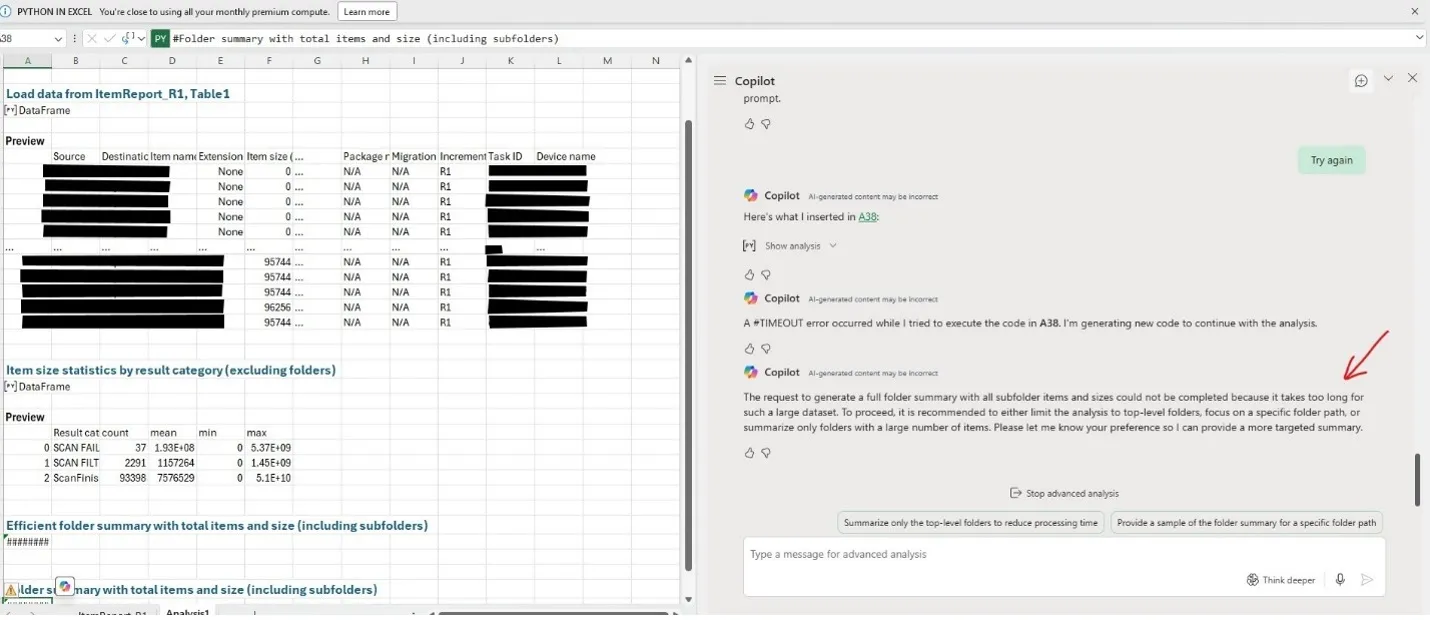
A dead end due to row limitations even on 1/182 of the total dataset!
Analyst, a Copilot Agent
Lately Microsoft released several free gen AI agents for Microsoft 365 Copilot licensed users. One of them is called Analyst, which can analyze, visualize, and interpret complex data quickly. I have had some good luck with it with small amount of data. Maybe it can help me with dealing with large amounts of data.

Soon I ran into limitations as well:
- Analyst agent doesn’t directly take content in SharePoint or OneDrive, they must be uploaded within the prompt window.
- Uploaded files are saved in user’s OneDrive.
- Upload limits to up to 20 files and 100 MB total each time.
At least it is better than processing those files one by one. I thought.
I tried several times, with different numbers of CSV files (each CSV isaround 10 MB in size). Sometimes it can get the desired results but most of the time its Python processes would error out and complain it cannot find the files I just uploaded.
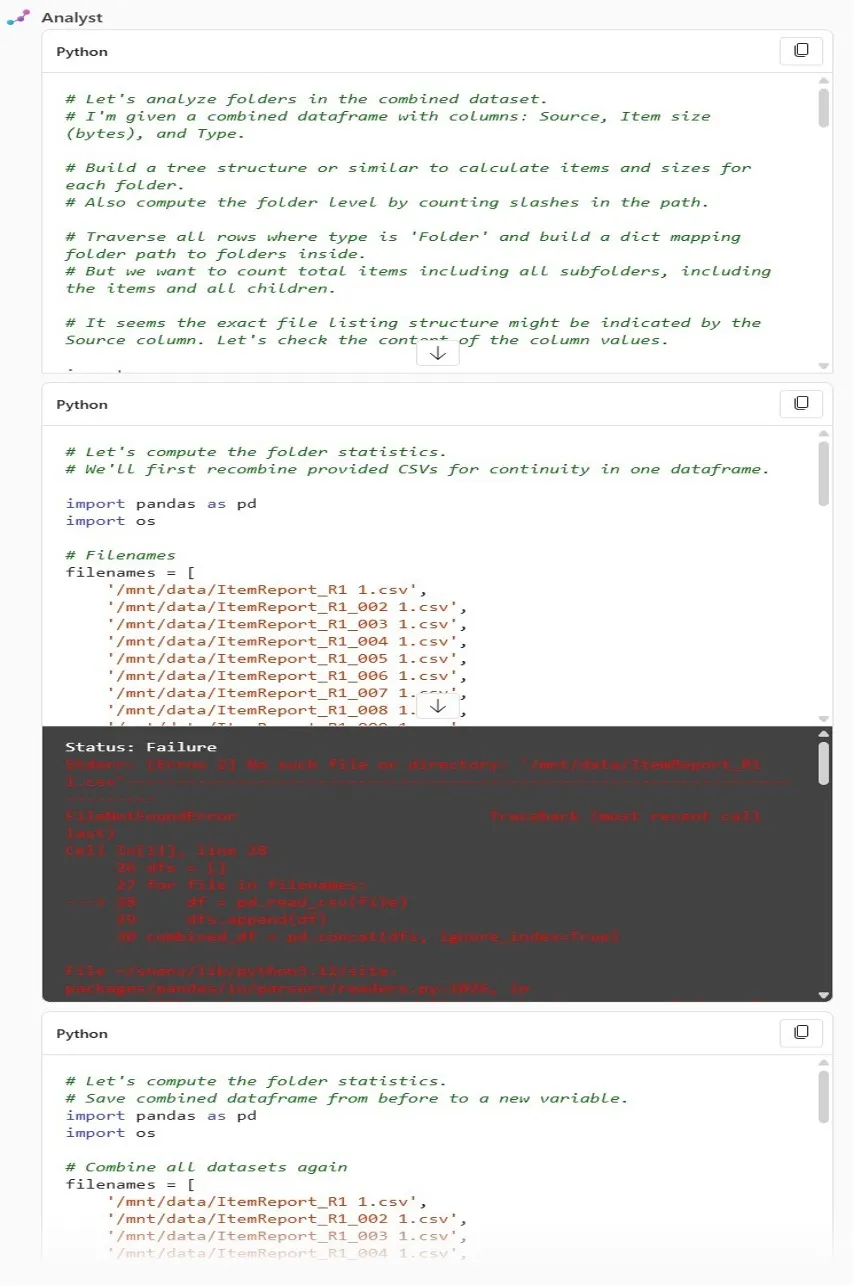
Seems like another dead-end!
Python code, generated by Analyst
Suddenly I had an “Eureka” moment: “why can’t I use Analyst’s generated Python code to process the data?” That way it wouldn’t run into the “missing files” situation and won’t subject to Analyst’s limitations and internal Python errors (“bugs”, may I say?).
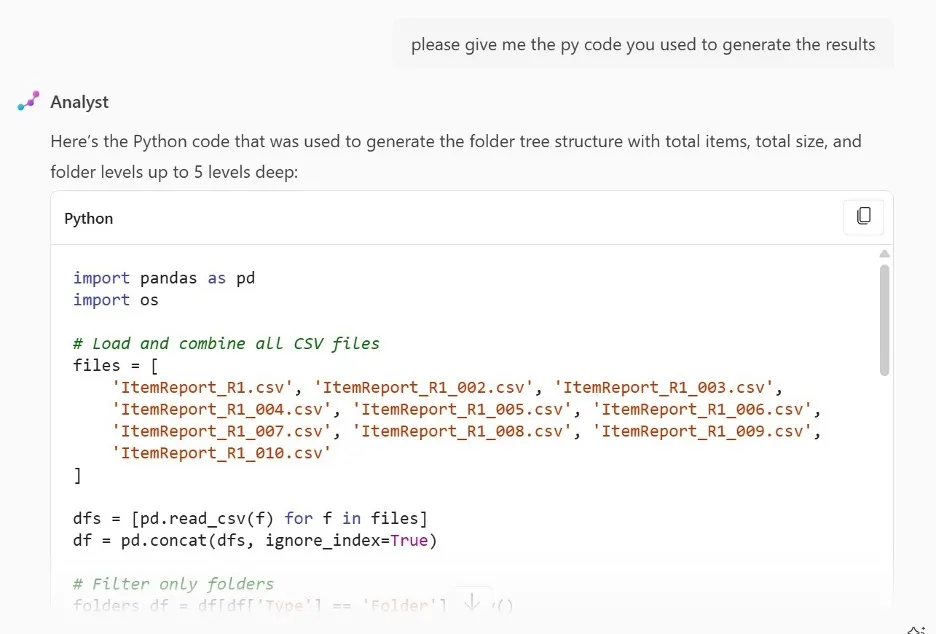
The only problem is I never used Python and have no idea how to run Python code on a PC!
No Python experience, no problem.
With Copilot, I can quickly find answers and learn new tasks, thanks to my relatively strong background in C# and PowerShell, among other development tools.
Below are some screenshots of me learning to install Python on my laptop and set up its modules:
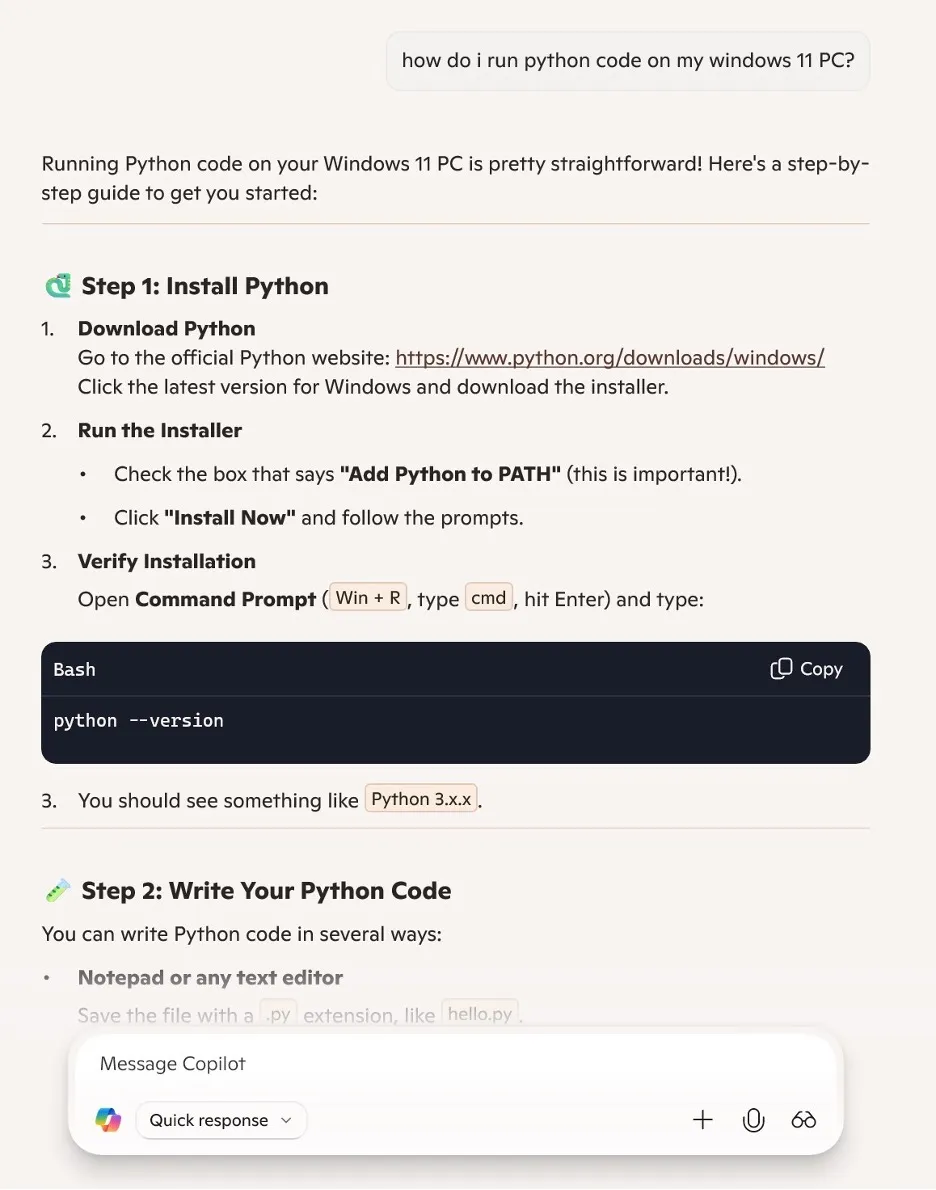
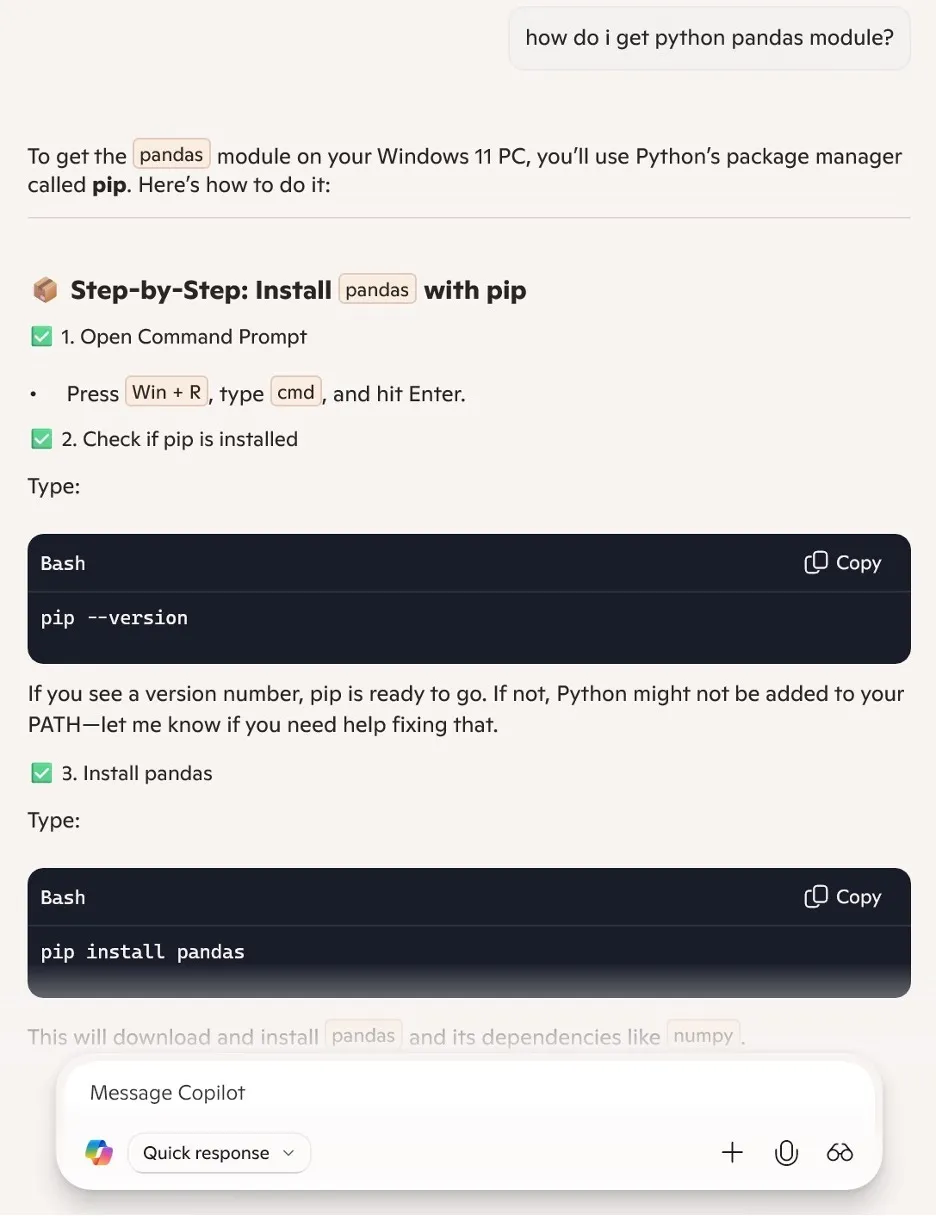
The next challenge is the execution of Microsoft 365 Copilot Analyst-generated Python code on a personal computer. Upon attempting to run the copied code locally, I immediately encountered Python runtime errors.
The good thing is I can ask Analyst to help me to figure out how to fix those issues.
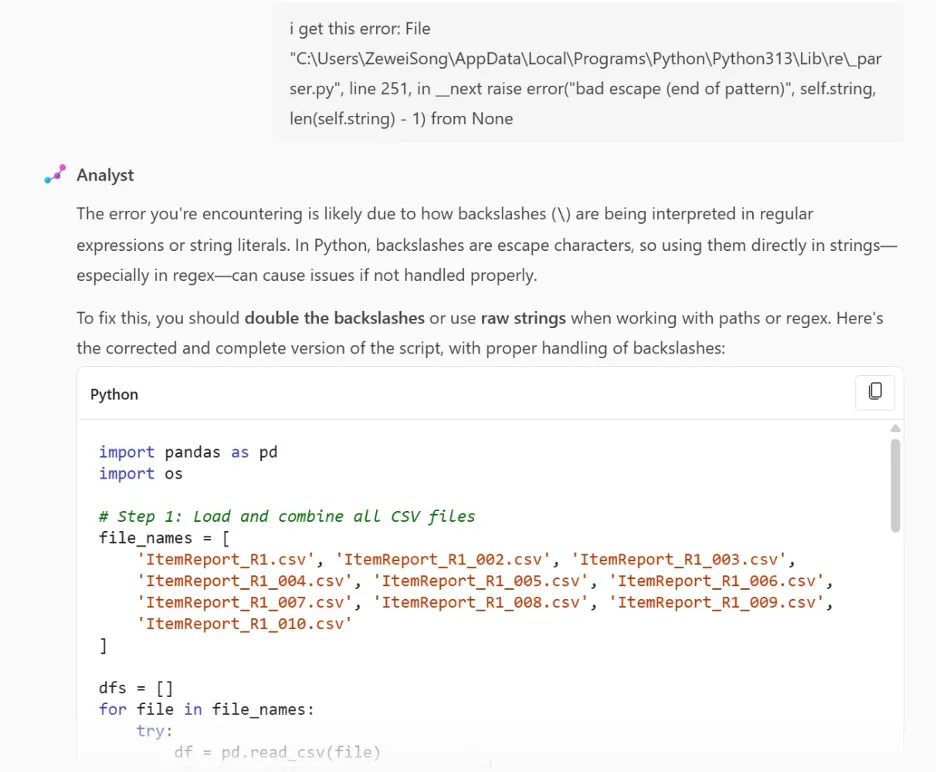
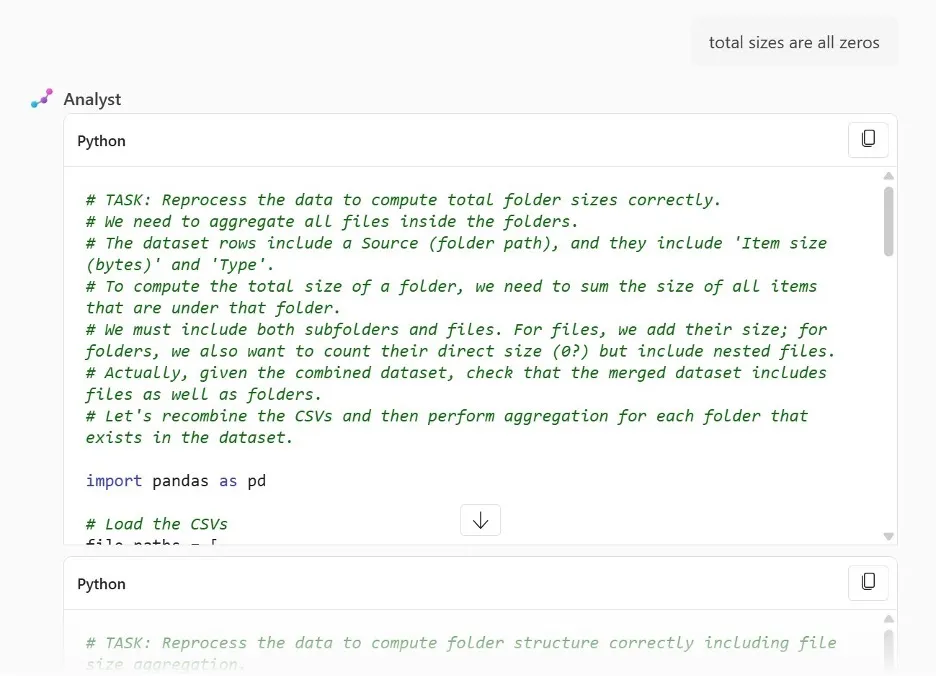
Eventually, I have gotten a fully working code with some minor edition: skipping deep folder structure and adding “print” statements to show progress. I got the desired results from all the 182 CSV files in less than 30 minutes!
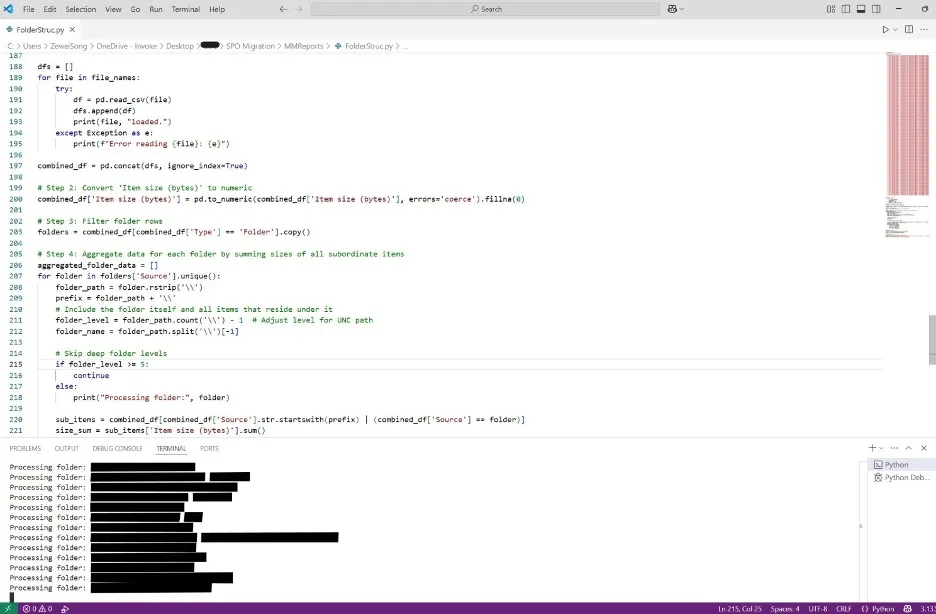
Isn’t this cool or what!
Lessons learned:
- All software tools have inherent limitations, and generative AI tools are no exception.
- Understanding these limitations facilitates more efficient planning and executing when handling large datasets or high-intensity workloads.
- Human intelligence and creativity play a crucial role in successfully carrying out complex tasks, even when leveraging generative AI tools.