From our archive. Details reflect the date of publication.
It turned out its pretty easy to move Copilot Studio created custom copilots between environments and tenants.
Here is how…
First to export the custom copilots as a solution file:
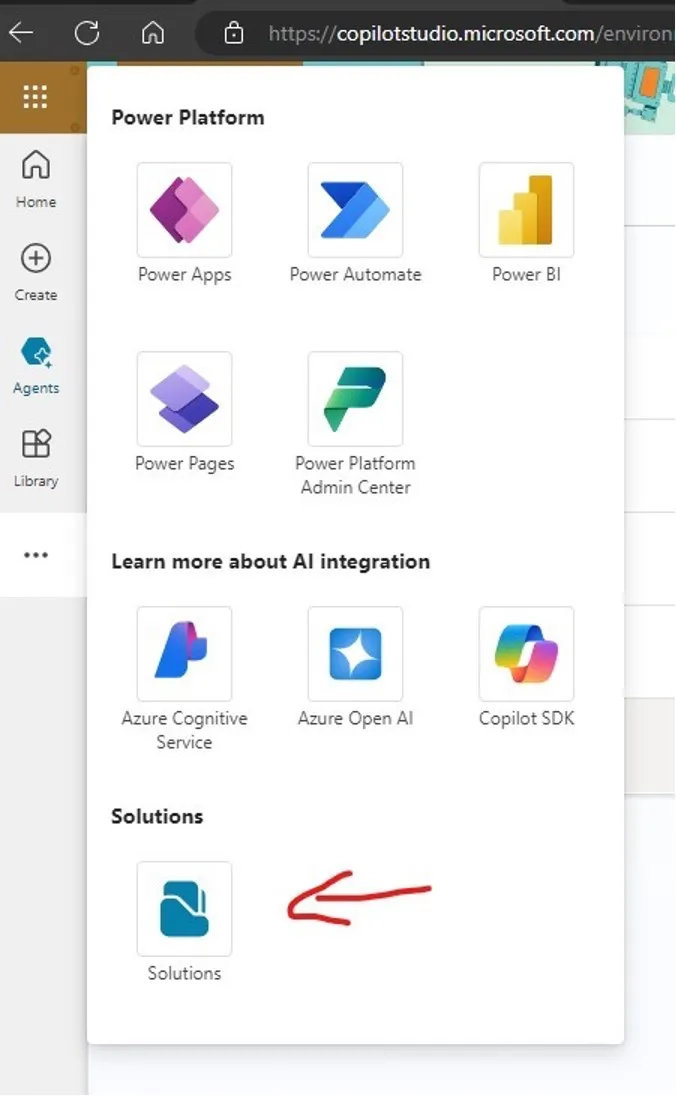
In your source environment, open https://copilotstudio.microsoft.comand open Solutions on its left navigation.
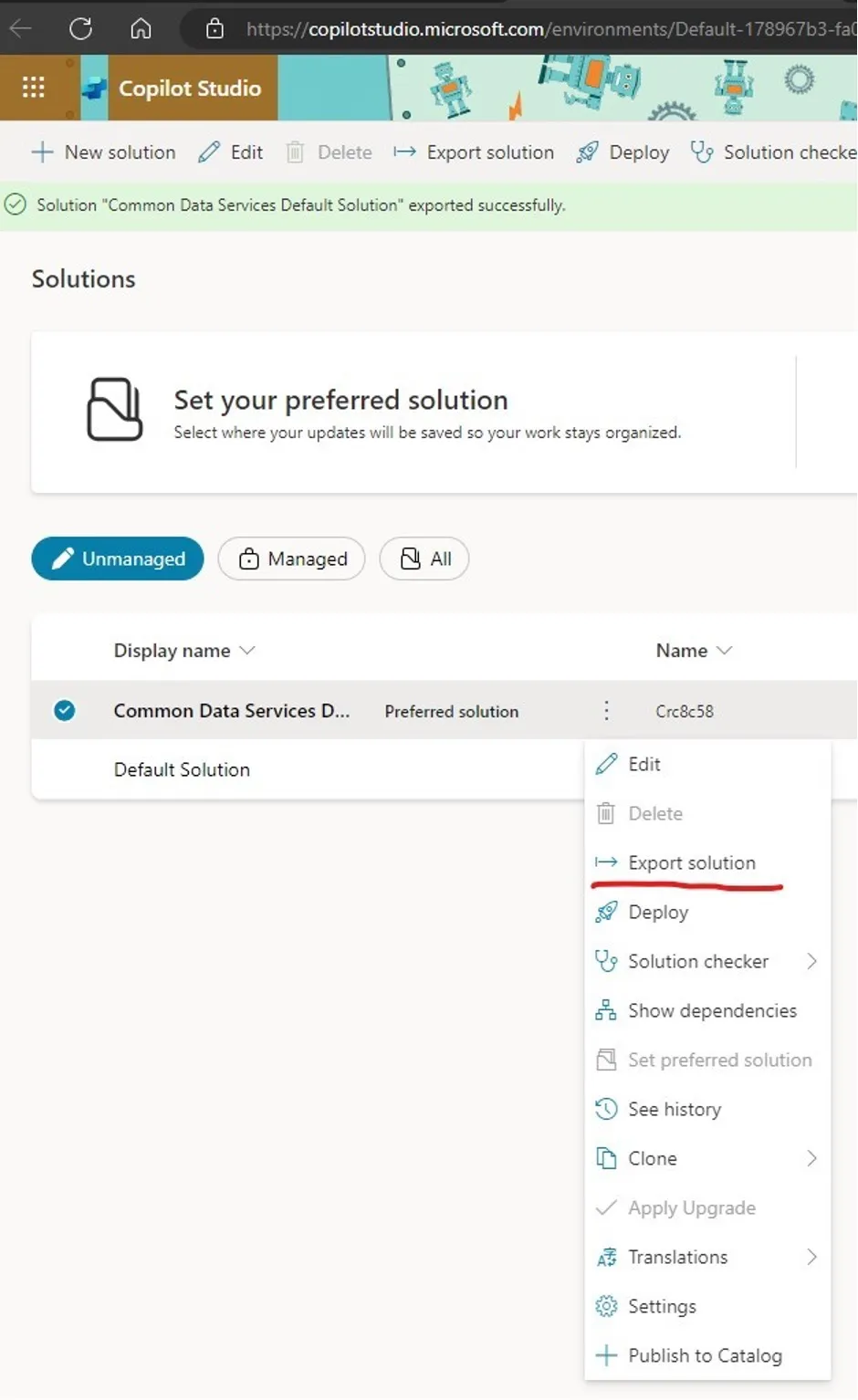
Click on the vertical dots next to your source environment and select Export Solution option, note that this option is NOT available for the Default solution.
Follow the online wizard and at the end it will give you the option to download.
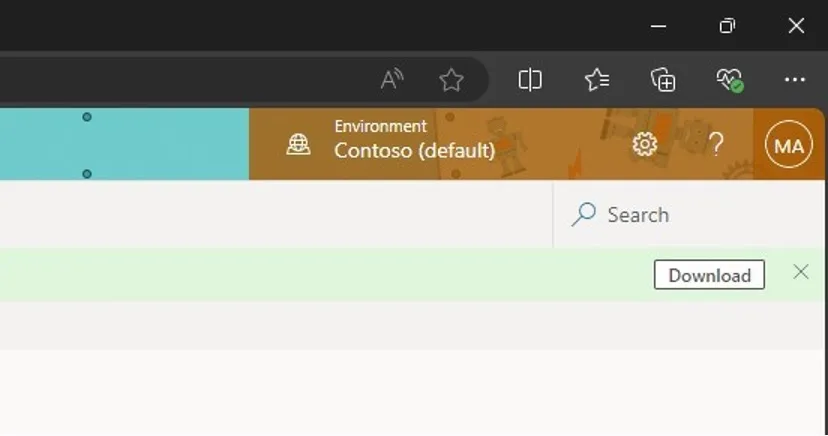
Download the ZIP file and the export is done!
Next you can import the solution to a different environment, this can be in the same tenant or a different tenant.
Go to https://copilotstudio.microsoft.com and log in to the target tenant and open the Solution option on the left nav. You can also do it in PowerApps as shown below.
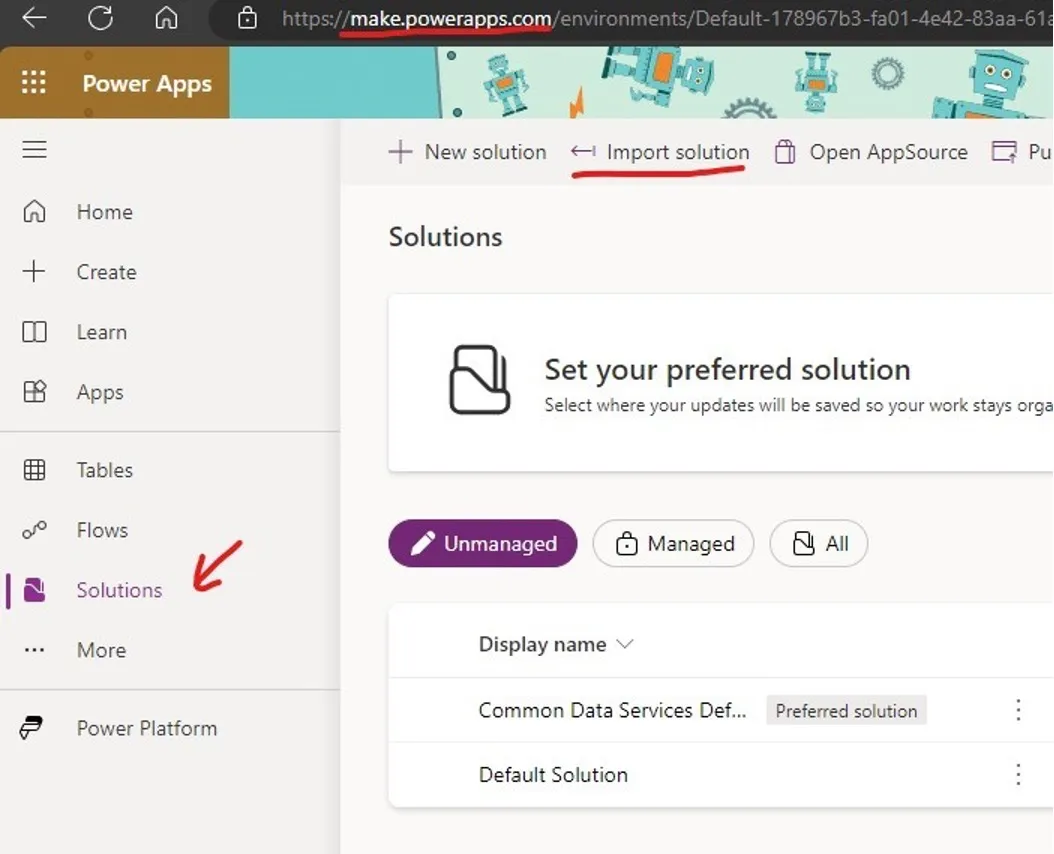
Click on Import Solution on the command bar and follow the instructions on screen to upload and import the ZIP file saved at the end of exporting solutions.

Wait for a few minutes and you should be able to see the custom copilots showing up in the new environment.
I noticed that although all the topics and actions are imported, but none of the files in the knowledge base, which in my case are uploaded to its file repository, are moved over. Also, the actions are not configured so I have to reset them up, and of cause you have to reconfigure all log ins and so on.
One more thing to note:
This link works too as the URL to go to navigate to Solution: after all, Copilot Studio is based on Power Virtual Agent, which shares the same Power Platform as PowerApps.
Happy piloting Copilot!