From our archive. Details reflect the date of publication.
I will cut the chase: there is a way to do for-each loop in Copilot Studio and it is hidden, meaning you cannot find it in its designer UI.
This short article will show you how to use it.
Follow below steps:
-
In Copilot Studio, go to your Custom Copilot and open an existing topic or create a new one.
-
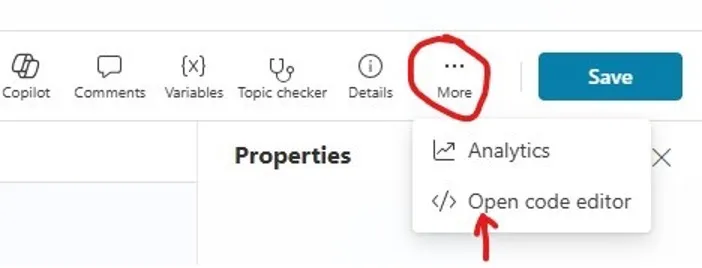
Switch to the topic’s code editor by click on Moreon the designer UI’s top nav bar and chose “Open code editor”.
- Once you are you are in the code editor, add following lines to the end of the topic’s source code:
1kind: Foreach
2      id: Foreach_Nl2kasnd
-
The alphanumeric string after
Foreach_is just a random identifier so anything would work. -
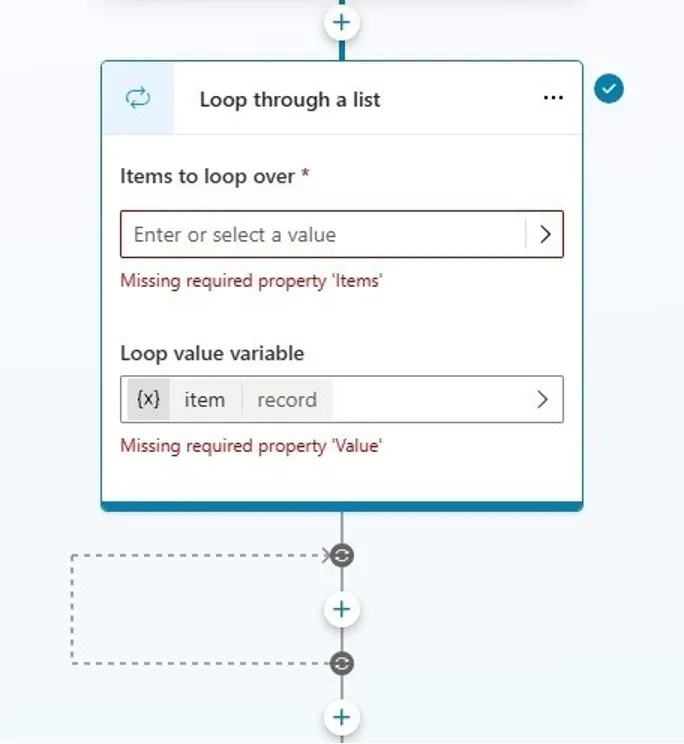
Now Close the code editor and you should see a newaction called “Loop through a list” appearing with errors.
-
Don’t worry about the errors, we will fix them soon: we need a table variable for the foreach loop and some logic inside the loop.
-
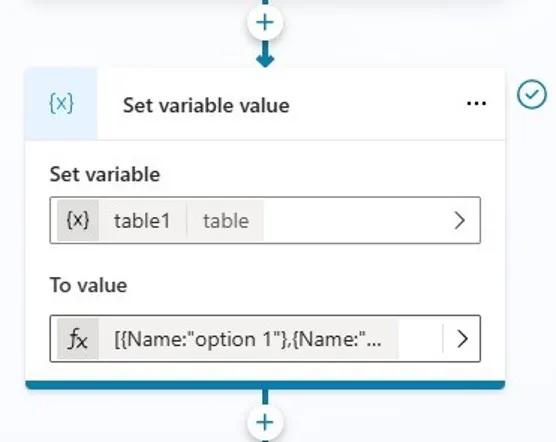
Add an action of “Set a variable value” right before the foreach block and create a new table variable named
table1and set its value to[{Name:"option 1"},{Name:"option 2"}]
- Go to the “Loop through a list” action we have just created and set “Items to loop over” to table1 and set the “Loop value variable” to “item”. It should look like this after the setting:
- Now we can finally add logics in the loop. let’s add a “Send a message” action to the loop and display each record in the table. To do that just make the message to show “item name is:
{Topic.item.Name**}”.
The entire logic should look like this now:
If you test this topic, your topic should return something like below:
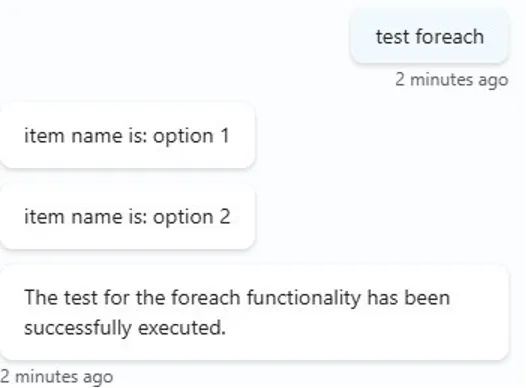
The code-behind for all added actions:
1 actions:
2    - kind: SetVariable
3      id: setVariable_AQUI9D
4      variable: Topic.table1
5      value: =[{Name:"option 1"},{Name:"option 2"}]
6
7    - kind: Foreach
8      id: Foreach_Nl2kasnd
9      items: =Topic.table1
10      value: Topic.item
11      actions:
12        - kind: SendActivity
13          id: sendActivity_ja5k6x
14          activity: "item name is: {Topic.item.Name}"
Conclusion
Foreach is not yet published but it is fully implemented, well almost: only thing missing is the designer UI component to add it to the design view, but you can add it via the code editor and it is a must for processing table variables.