From our archive. Details reflect the date of publication.
…continued from last article 007 (Copilot) Agent: An Agent for All Agents
In this section, we are going to create a Copilot agent and wire it up with the knowledge source that we have created in section 1, which you can find here: 007 (Copilot) Agent: An Agent for All Agents.
We will create the agent as a “regular” Copilot Studio agent because we need to use topics to control our logic.
- Login to Copilot Studio using your Microsoft 365 tenant credentials if not already logged in.
- Select an appropriate environment from the top right if not selected already.
- Select “
Agents” from the left pane. - Click the “
Add agent” button on top left. - Click “
Skip” to configure button. - Use the information below as its description:
An agent to provide guidance for users on which Copilot agent is best suited for their specific scenario. Agents’ information is provided by centralized knowledge resources. The information for agents has the following components: name, description, URL, type, category, instructions, knowledge and triggers, if applicable.
- Name it “
007 Agent”. - Click on the “
Create” button on the top right to build the agent.
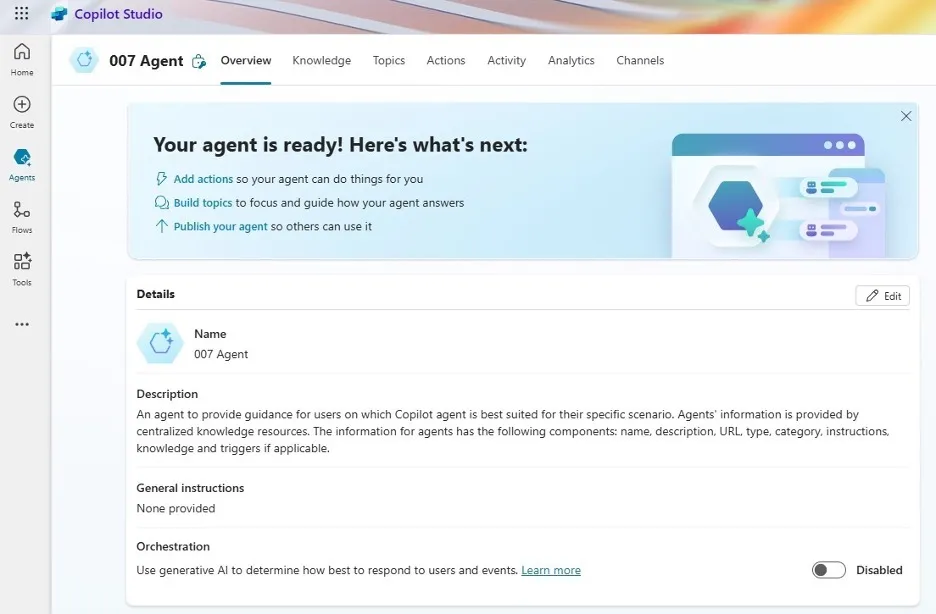
- After the agent is created, on its “
Detail” page under “Knowledge” section, click “Add knowledge”.
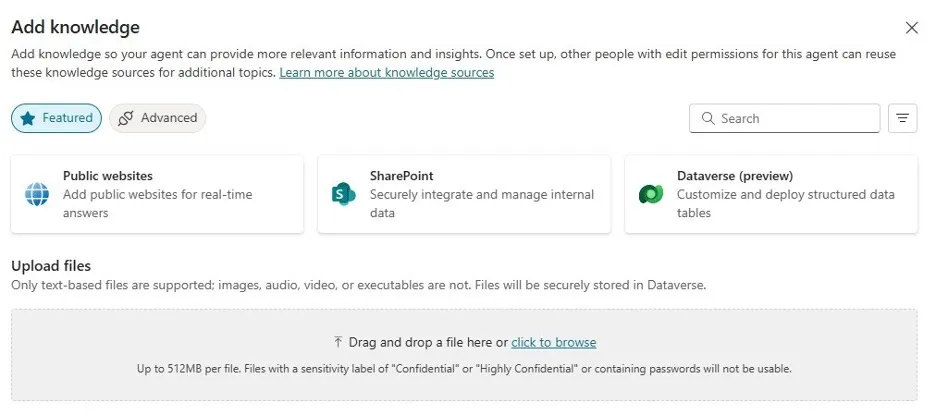
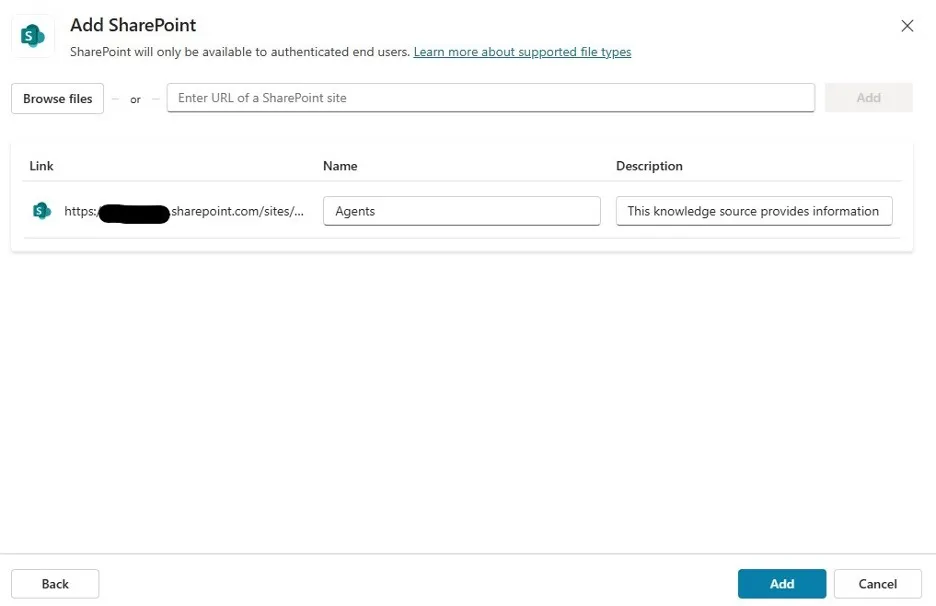
- Select the Sharepoint option and select the Sharepoint site we have created in section 1 and add it.
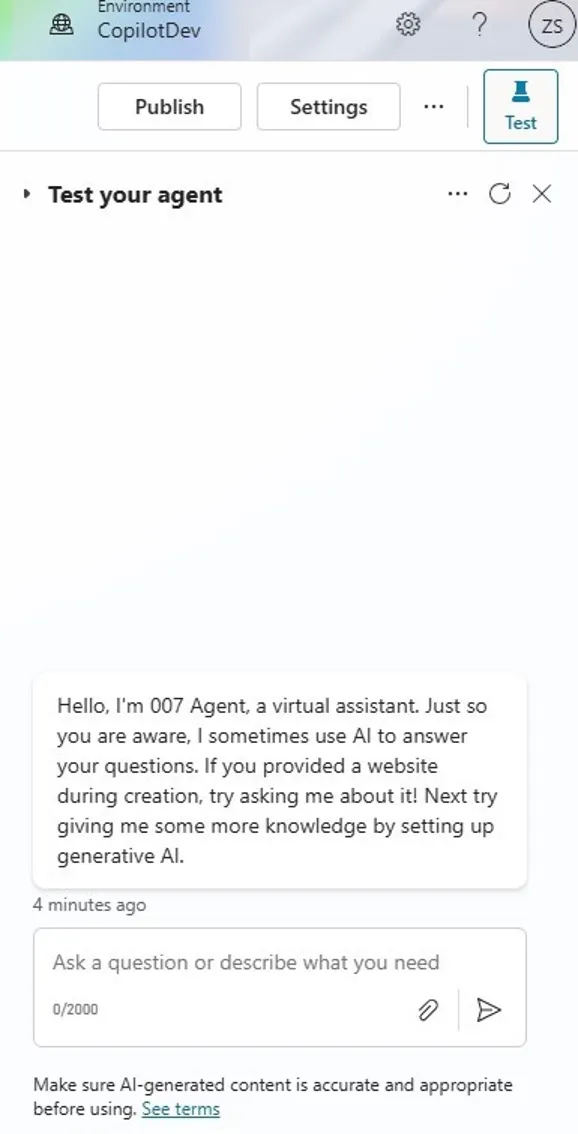
We can do some tests now. You may notice there are already some prompts readily generated in the agent’s “Test your agent” window on the right; feel free to try them out and see if the responses are accurate.
In the next section, we will enable the “007 Agent” to not only provide information about agents but also help direct users to suitable agents for their needs by utilizing something called “topics”.
…to be continued at this link.